|
Pink` star
Membru 2

| Data inscrierii: 15/Dec/2009 |
| Mesaje: 483 |
|

|
|
 Trimis: 15/12/2009 19:41 Trimis: 15/12/2009 19:41 |
 |
|
Create a new document (Ctrl+N) in Adobe Photoshop with the size 1920px by 1200px (RGB color mode) at a resolution of 72 pixels/inch. Select then the Paint Bucket Tool (G) to fill the new background layer with #EBF4F3 color.

Then choose the Rectangle Tool (U) to draw a rectangle, like the next one:
[img]Then choose the Rectangle Tool (U) to draw a rectangle, like the next one:[/img]
Set Fill to 0% for this layer in Layers panel:
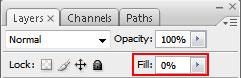
Select Add a layer style from bottom part of the Layers panel and click to Gradient Overlay:
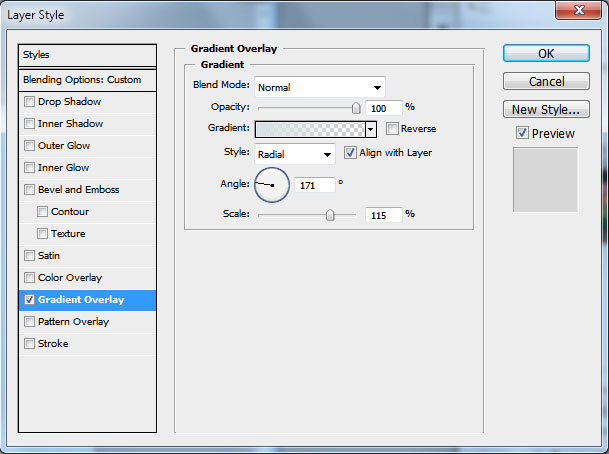
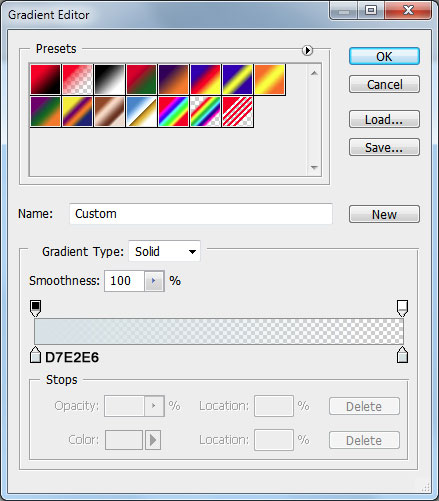
Click in the color bar to open the Gradient Editor and set the color stops as shown. Click OK to close the Gradient Editor dialog box.
We’ve got the next floor:

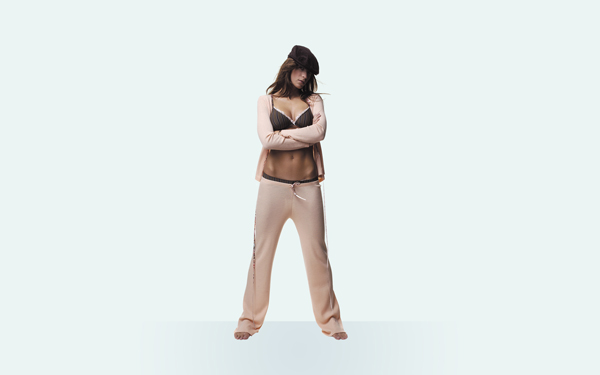
Find a stock photo with a tip represented on it, I used this photo from deviantart. I would like to thank the author of this photo:
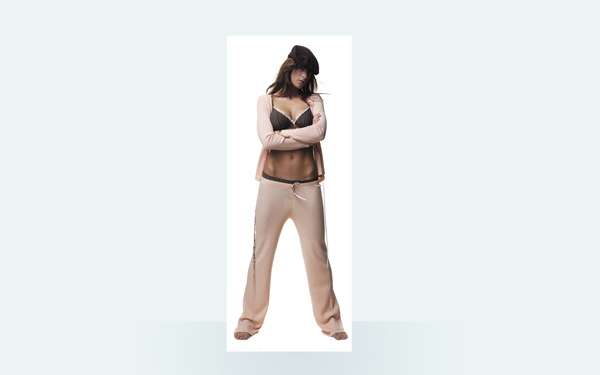
Remove the background using your favorite tools like Pen Tool (P), Magic Wand Tool (W), Magnetic Lasso (L) or even a simple Filter>Extract. Make a copy of this layer (Ctrl+J), click the visibility button on this copy, we’ll need this layer later:
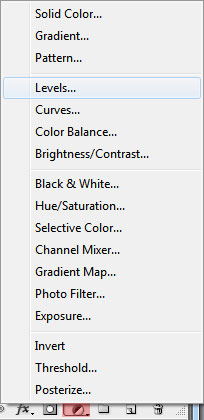
Click on the bottom part of the Layers’ panel on the next icon Lucrate new fill or adjustment layer and select Levels to make some color corrections
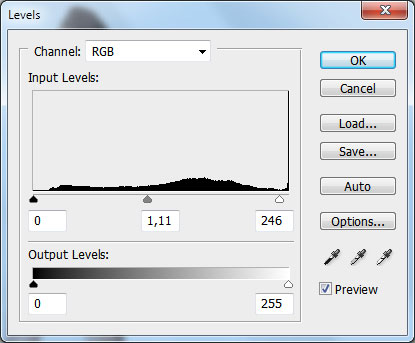
Raise the contrast of the picture:
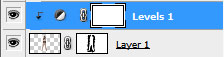
Put the mouse cursor between the layers and hold on the Alt button while clicking on the left button. The top layer will be transformed into a mask:
Next we’ll add another adjustment layer. Click on the bottom part of the Layers’ panel on the Făcute new fill or adjustment layer and select Hue/Saturation:
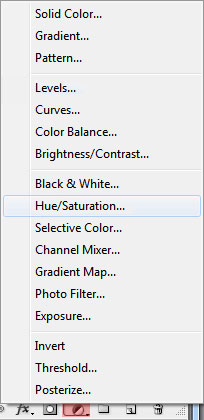
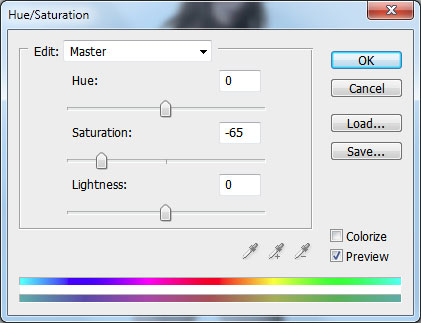
Reduce the color saturation:
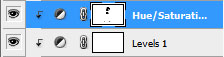
Transform it into a mask too. Click on this layer on the Layers’ panel, select the mask and using a brush from the Brush Tool (B) of black color paint the opened zones (skin) on the girl’s body:
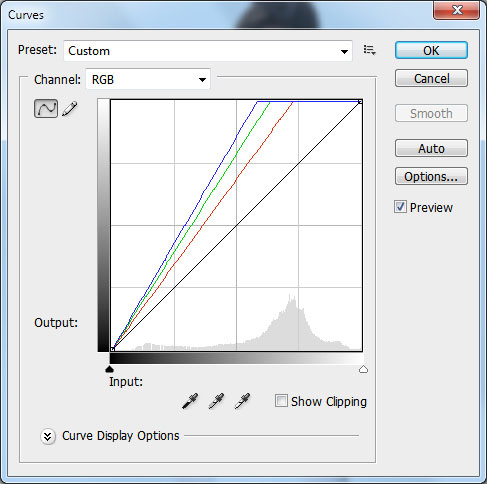
Add another adjustment layer. Click on the bottom part of the Layers’ panel on the Create new fill or adjustment layer and select Curves:
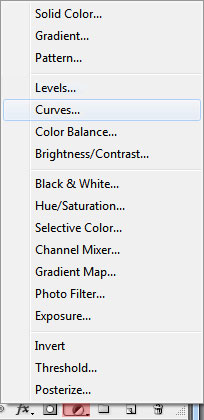
Set the options for raising the contrast. Paint the body’s zones in the mask too and a little on the girl’s clothes, only on those places with a high contrast.
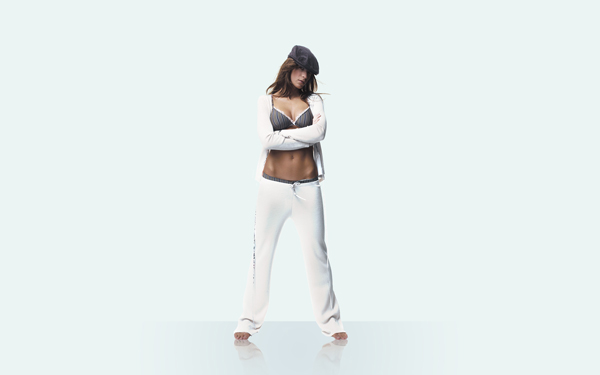
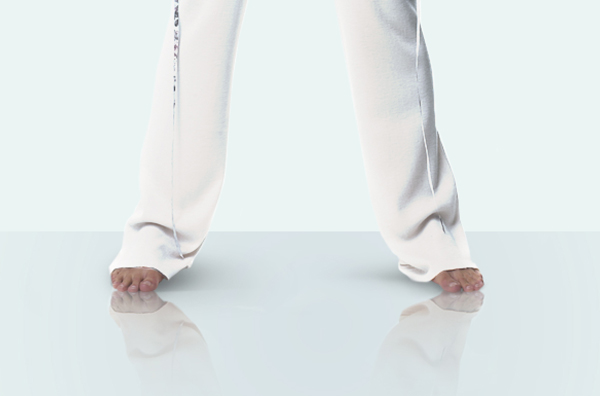
Make the girl’s reflection on the floor. Let’s activate the copy of the girl’s layer and turn it around, applying Free Transform (Ctrl+T). Choose the Eraser Tool (E) to erase the same places demonstrated below:
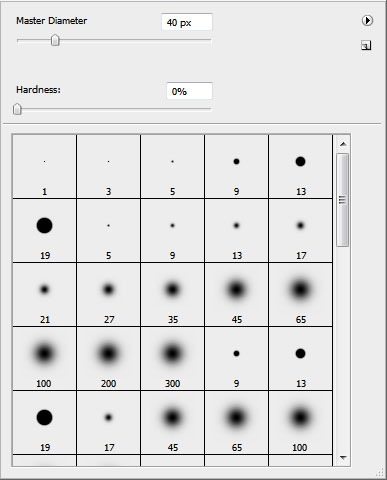
Then select a Soft Round brush of black color with the Opacity of 20% and represent a shadow on a new layer:
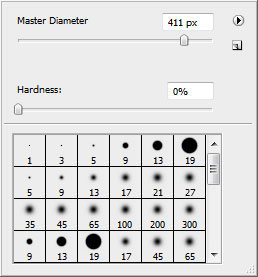
The brush’s settings:
Create a new layer, representing here the shadow around the girl. Choose the same options applied before for the Soft Round brush, but enlarge the brush’s size, using the button .
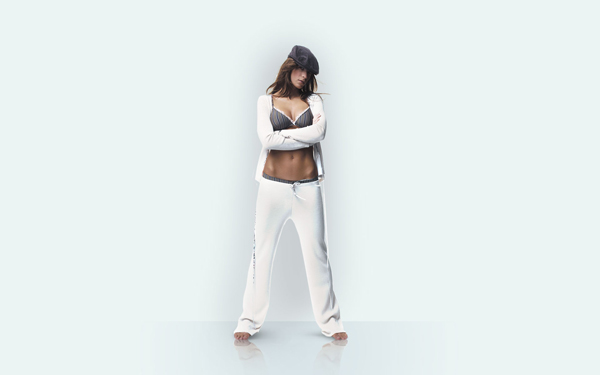
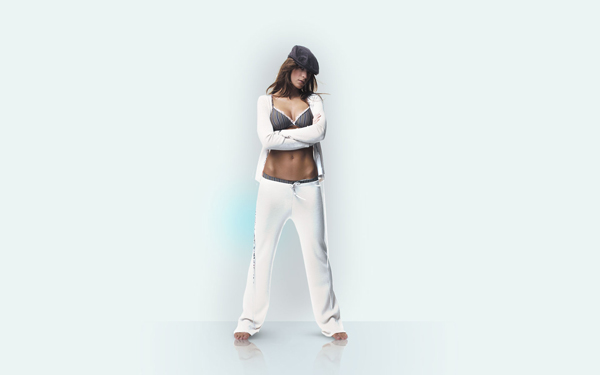
Create a new layer select a Soft Round brush and insert here a spot of the color #6DCFF6. Opacity - 20%.
Create a new file with the size 500px by 500px (RGB color mode) at a resolution of 72 pixels/inch. Select the Soft Round brush of negru color and set the next shown options for it:
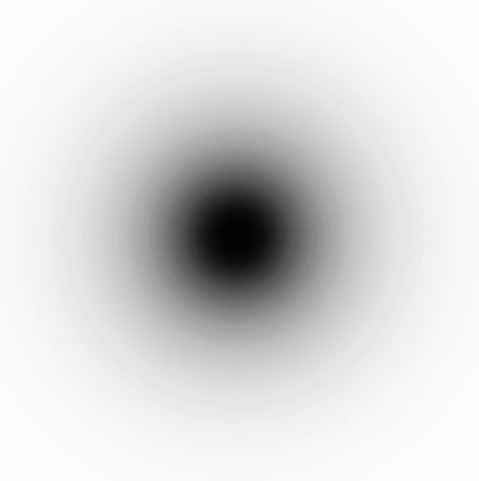
Let’s put a brushstroke, like the next one:
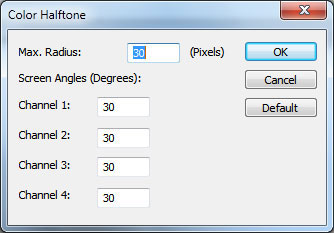
Then choose Filter>Pixelate>Color halftone and set the next demonstrated settings:
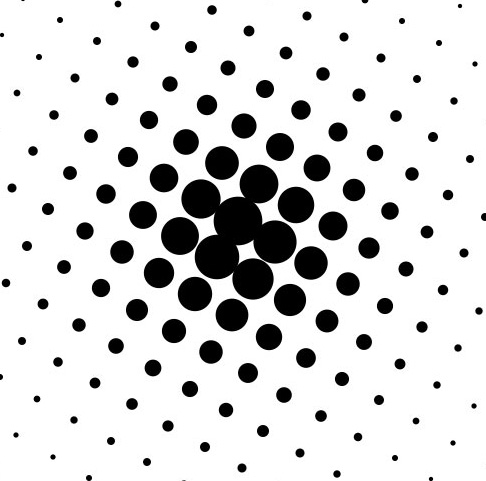
It’s the result we’ll get on this stage:
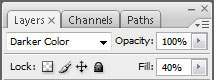
Select this layer and place it on a new layer on our basic document, changing the Blending Mode to Darker Color and set Fill to 40%.
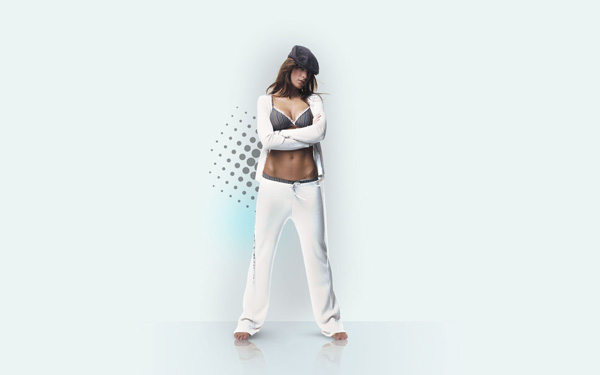
Final Image Preview
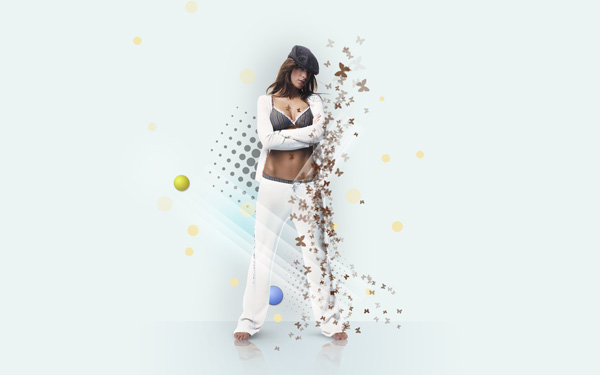 |
|
|